Stripe Connection

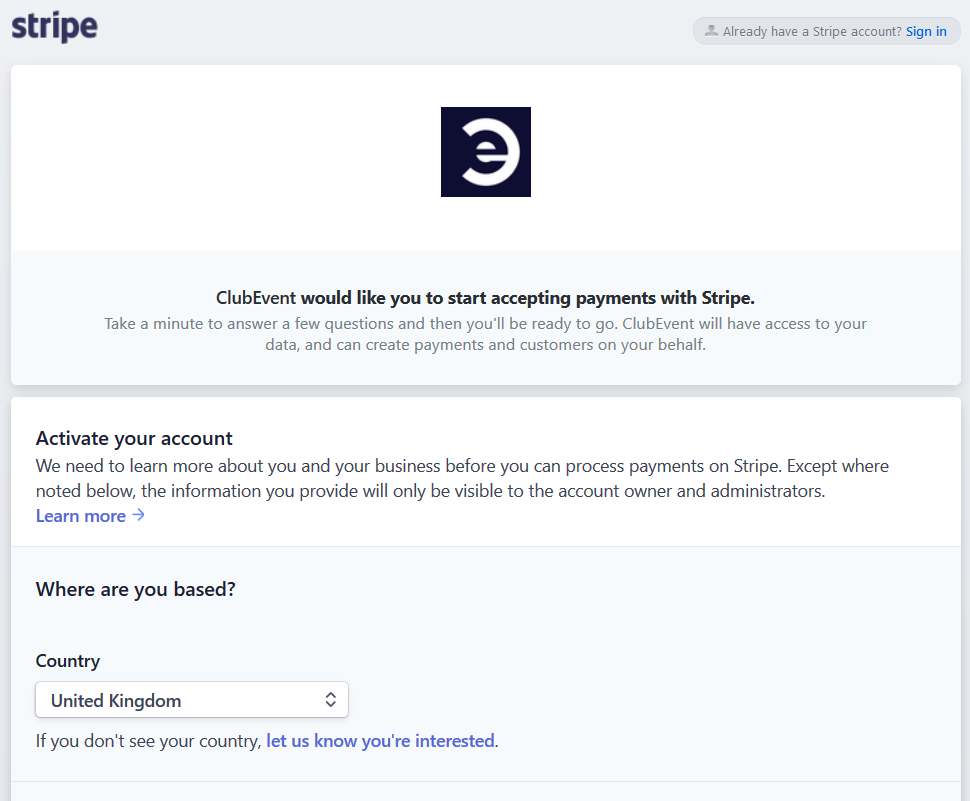
In order to accept credit card payments, you will need to create a Stripe account and allow ClubEvent to connect to it. This simply allows credit card payments to go directly into your own Stripe account, meaning that ClubEvent does not hold your money at any time. You can configure Stripe to pay monies into your bank account on a regular basis.
From your Stripe Dashboard you can also organise easy refunds, should this need arise.
Start connection process
- From the ‘Plans and Pricing’ page, press the ‘Upgrade’ button
- Login to the subscriptions system using your club owner email and password
- Click the ‘Change Plan’ button
- Press the ‘Connect with Stripe’ button
Stripe: Frequently Asked Questions
What is Stripe?
Stripe is a simple and powerful way to accept payments online. Stripe has no setup fees, no monthly fees, and no hidden costs. Millions of businesses—ranging from startups to Fortune 500 companies—rely on Stripe’s software tools to accept payments securely and expand globally.
Stripe is available to businesses in 25 countries. With Stripe, you can accept all major debit and credit cards from customers in every country in 135+ currencies.
You can learn more at https://stripe.com/customers.
How does Stripe work with ClubEvent?
With Stripe, you can start accepting credit and debit card payments almost instantly. You can either create a new Stripe account, or connect an existing Stripe account if you already have one.
Get started here.
Is Stripe secure? Will I be PCI-compliant?
Yes! Stripe meets and exceeds the most stringent industry standards for security. Stripe is also audited by a PCI-certified auditor, and is certified to PCI Service Provider Level 1. (This is the highest level of certification available.)
You can learn more about the technical details of Stripe’s secure infrastructure at: https://stripe.com/docs/security/stripe.
You can see Stripe’s PCI certification here and here.
What payment types are supported?
Stripe supports all major credit and debit cards, plus other payment methods. To find out which specific payment methods available in your country, please see Stripe’s Payment Options page and select your country at the page’s bottom-left corner. Here are some examples:
- U.S. businesses can accept Visa, MasterCard, American Express, JCB, Discover, Diners Club, and China UnionPay.
- Australian, Canadian, European, Hong Kong, and Singaporean businesses can accept Visa, MasterCard, and American Express.
- Japanese businesses can accept Visa, MasterCard, American Express, JCB, Discover, and Diners Club.
You can also accept gift and prepaid cards of the above types. You can use Stripe to charge cards of these types from customers anywhere in the world.
Stripe also supports Apple Pay, Google Pay, 3D Secure, SOFORT, iDEAL, Giropay, Bancontact, SEPA direct debit, and China’s Alipay.
What is Stripe’s pricing?
Get charged only when you earn money. No monthly fees, setup fees, or hidden costs! For detailed pricing information by country, please see https://stripe.com/pricing and select the relevant country at the page’s bottom-left corner.
The following examples show basic pricing for UK users only:
Credit card processing
- 1.4% + 20 pence (GBP) per transaction
When do I get paid?
Once you’ve made your first charges with Stripe, your first payout will be initiated, and should post within seven days. Thereafter, all UK-based merchants will receive payouts on a rolling 7 day schedule.
Payout schedules vary slightly for merchants in different countries.
See your country’s payout schedule.
You can link your bank account, and set the frequency of these payouts, in your Stripe Dashboard’s Balance page. From there, you can also view all payouts from Stripe to your bank account. To learn more, visit Stripe’s documentation on Receiving Payouts.
How can I issue a refund?
You can issue issue refunds via your Stripe Dashboard. Depending on your customer’s bank, the customer will see the refund show up between 5–10 business days later. Refunds can be whole or partial—that is, you can refund any amount up to the original amount of the charge. For details, see: https://stripe.com/docs/refunds.
What is a dispute? How do I handle them?
A dispute (also known as a chargeback) occurs when a cardholder questions a charge with their bank or credit card company. When a dispute comes in, Stripe gets information about it from the bank, and displays one of eight reason categories to our users.
Depending on the reason, the Stripe Dashboard will guide the user through submitting the best type of evidence to support the charge, as outlined here: https://stripe.com/docs/disputes/categories. Once the user submits the dispute evidence to Stripe, Stripe will submit the evidence to the banks/card networks on their behalf, so that the user does not have to deal with these institutions directly.
To be notified about disputes, select email notifications through your Dashboard: https://dashboard.stripe.com/account/emails. (Select “Email me for: Disputes.”)
Here are some overall best practices for avoiding fraud: https://support.stripe.com/questions/avoiding-fraud-and-disputes.
What will my customers see on their credit card statement?
Customers will see the descriptor that you provide in your Stripe Account settings. (Look for the Statement Descriptor field.) You can customize this entry to match your business name or anything more specific you might like.
When to contact Stripe versus when to contact ClubEvent
Contact ClubEvent about these types of questions:
Order-related:
- Has my order arrived?
- What is the tracking information?
- What is the shipping address?
- How much tax is charged on an item?
Customer-related:
- How do I get in touch with my customer?
Country and currency support:
- What countries are supported?
- What currencies are supported?
- What international payment methods are supported?
Contact Stripe about these types of questions:
Transaction-related:
- Questions regarding a specific charge, refund, payout, or dispute
- Account-related issues, including account lockouts
- Using the Stripe Dashboard’s functionality and settings
How to contact Stripe
Contact our support team through your Stripe Dashboard. Stripe can respond quickest if you use the following guidelines when contacting us.
Log into Stripe first
Please first log into your Stripe account, then submit a request here: https://support.stripe.com/email. Logging in ensures that we know which account you’re inquiring about. It also shows us that you’re an authenticated user of the account.
Include formatted IDs
To help us solve your issue as quickly as possible, we recommend formatting your inquiry with pertinent IDs, such as:
- Customer Name: Johnny Example
- Customer Email: johnny@example.com
- Any other relevant Stripe IDs:
- Charges begin
ch_***orpy_*** - Transfers begin
tr_***, etc.
- Charges begin
If your inquiry is regarding a specific card, please include as much information about the card as possible, such as the expiration date, last 4 digits of the card number, and the card brand. However, please never share or send a full card number or CVC.
Add a hosted email address
After submitting your inquiry via the form, Stripe will send a confirmation email that they’ve received your message. So that ClubEvent and Stripe can work together to solve your issue, we’d recommend responding to the confirmation email, to add your [YOUR.ACCOUNT]@[PLATFORM].com address into the email thread.
General Stripe support links
For any questions or feedback related to your Stripe account, please contact Stripe or consult Stripe’s documentation. Frequently consulted topics include: